Skills Training and Assessments

Running a Skills Training & Assessment Course (STA)

You’ll start seeing Skills Training & Assessment (STA) courses in the LMS. Each one is a single hands-on skill. The student comes in with some background. You run them through the skill, demonstrate it, show the technique behind it, and coach them until they’ve got it. Then they prove it on their own before moving on. That hands-on stretch is the heart of every STA, and it’s yours.

Here’s what an STA looks like from your side, and what’s built into each one to back you up.

Students arrive prepared

Before students get to you, each one completes a short pre-quiz on the skill. There’s reading available to go with it, but it’s there for the student who has never run into this skill on the job. It isn’t a cover-to-cover requirement for everyone. Someone who has already done the work in the field can go straight to the pre-quiz. Someone who hasn’t gets enough of a running start that they’re not walking in cold. Either way, the pre-quiz is the checkpoint. It confirms they’ve come in with enough background to make your time count.

Students also get a prep checklist of the skills the STA covers. They can practice these on the job, at home, or in makeup time, and check them off as they go for a running read on their own readiness. By the time they’re in front of you, the groundwork is laid and you can get straight to the skill.

What every STA includes

Every STA follows the same path, so once you’ve run one, the rest feel familiar. And every STA hands you the same set of materials to work from:

  • Step-by-step setup instructions: the workspace, the tools and materials, and the safety check.
  • A step-by-step training exercise that the students work and you lead.
  • An observation and evaluation guide that tells you what to demonstrate, the key points to hit, and the common mistakes to watch for.
  • Tool and material lists for both the training and the assessment, plus any prints or specs.
  • The assessment and its student handout, scored through STAT, the Skills Training & Assessment Tool.

None of that is meant to script you. It keeps the skill consistent from one program to the next, with the same standard and the same expectations, while you bring your own technique and experience to how you run it. You know the trade. The materials just make sure every student, in every program, comes out the other side with the same skill.

Running an STA

  1. Set up

Use the space you already have. STAs don’t come with a required layout or anything you have to build to match. There’s an example layout if you’re starting from scratch, but if you’ve already got a space that works, run with it. Give each student room to work and a clear view of your demonstrations, stage the tools and materials off the list, and run the safety check. (For Knot Tying 101, that’s inspecting the rope for damage and reviewing safe cutting; every STA spells out its own.) Then take a few minutes to run back through the skill yourself, along with the common-error list, so you know what to flag before a student does.

  1. Run the training exercise

Start with a group intro: the task, the expectations, and the safety points. Then work the skill one step at a time. Demonstrate it, show the technique, and explain where it shows up on the job. Then watch each student do it and coach them in real time. Students don’t move to the next step until they’re ready. The observation guide helps ensure every critical step is covered.

  1. Run the assessment

When training is complete, switch to assessment mode. Launch the STAT, verify which students are present, and brief them on what they’ll perform. From there, they work on their own. You observe their performance and answer procedural questions, but coaching stops during the assessment.

  1. Score and remediate

STAT walks you through each assessment criterion while you score student performance. One instructor can assess the whole group and the individuals in it at the same time, so you’re not grading one person at a time. If a student doesn’t demonstrate competency, STAT points to the specific skill or objective and where to shore it up: coursework to revisit, or a prerequisite STA to rerun. The goal is simple. They walk away competent, or they walk away knowing exactly what to work on before they try again.

Finding your STAs

STAs are accessed from the same LMS you already use. Once you’re enrolled, open the new Learning & Skills tab (formerly My Courses), and select My STAs from the new Course/STA dropdown. The STA workspace looks and functions just like My Courses. You can organize STAs into tabs and arrange them however you prefer. Opening an STA gives you everything for that skill in one place.

As an instructor, you’ll see:

  • Setup instructions
  • Observation and evaluation guide
  • Instructor checklist
  • Materials and tools lists
  • Prints and specs
  • Pre-quiz answer key
  • Launch STAT button

Those instructor pieces are hidden from students, so students only ever see their side of it.

STAs were built to make hands-on instruction easier to deliver, easier to assess, and more consistent across every program. They give you the structure and the resources, and they leave the technique and judgment where they belong — in the hands of experienced instructors.


New Features – Print and Custom Exams are Coming to TPP

On July 1, 2026, we will be introducing two new features to augment TPP, the ability to print exam and create custom multi-topic test. These features will be available as a cost added option to any existing tier for $200/year.

Print Exams – With an important caveat, TLs will have the ability to generate 3 pdf versions (with answer keys), of an exam. What’s the caveat? Due to the limited nature of printed exam, advanced question types cannot be replicated and may preclude certain exams from being available in print (Construction Drawings, for example).

Custom (Multi-topic) Exams – TD/TDAs  will have the ability to create custom multi-topic (drawing from up to 12 courses) for use at the local training center. All other TPP features (such as the LockDown Browser) remain the same.

We realize that not every JATC/AJATC will find a use for these new features, which is why we are providing them as a “plus” option for training centers that desire them.

Stay tuned for a deep dive into how these new features work in an upcoming post.

Add a 2nd MFA Delivery Method to Bulletproof Your Login Experience

Recently, some major email service providers experienced technical difficulties that may have delayed or prevented the delivery of Multi-Factor Authentication (MFA) codes.

Please be advised that these disruptions originated with the external email providers and were not caused by an issue within our internal systems. Most services have now stabilized, and you should be able to receive these security codes as usual.

Did you know the LMS has the ability to deliver MFA codes via SMS text and Authenticator app as well as email?

(more…)

Ensuring a Smooth Start to the New School Year: Update Respondus LockDown Browser

As the new academic year rapidly approaches at many training centers, administrators in managed computer environments are reminded to prioritize updating Respondus LockDown Browser to the latest version. This proactive step is crucial for ensuring a seamless and secure online assessment experience for both students and instructors from day one.

Maintaining the most current version of LockDown Browser ensures compatibility with learning management systems and incorporates the latest security enhancements and feature improvements. Outdated versions can lead to technical difficulties, impacting the flow of online exams and potentially causing frustration for users.

Taking the time to deploy the newest version across your managed devices before the start of the semester will minimize potential disruptions and contribute to a stable and reliable testing environment.

For detailed instructions on how to update the LockDown Browser within your environment, please refer to the following article: LockDown Browser Lab Edition

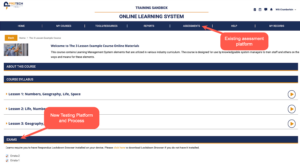
The NEW Testing Platform and Process – Coming Early July!

After much anticipation….

The New Testing Platform and Process (TPP) is all new and shares nothing with its predecessor. It is built on the same platform as the quiz engine that has been used by the PTSI Learning Management System courses since the debut of the OLS almost a decade ago.


Overview

Test delivery will be through a lockdown browser called Respondus (full details at web.respondus.com). Respondus Lockdown Browser disables keyboard shortcuts, right-click menus, and more. It also makes opening new windows and applications impossible during a test. It forces students to focus on the test simplifying proctoring. Proctors are not tied to their computer, but free to walk around and monitor progress or answer questions.

Note: A link to download Respondus will be provided on the LMS under the EXAMS section

TPP only allows online tests. No paper tests will be available using the new system. TPP will scramble the question order, but students in a group will all see the same questions.

Use of either local program computers or student personal computers is at the discretion of the local program.

      • TPP exams are supported on Mac, Windows, Chromebook, and iPad operating Systems – Phones are not supported.
      • Keeping up to date machines and browsers is always important.


Test Availability Timeline

The New Testing Platform and Process and existing testing platform will coexist, and individuals who prepare and/or administer tests will need to be fluent in both. Here is a breakdown:

    • All new CML courses released in 2024 and after will only have tests available on The New Testing Platform and Process
    • CML courses are delineated with “ – CML” in their course title
    • Existing CML courses will be available on both platforms
    • All Outside Program tests will be available on both platforms
    • All other courses are only available on the existing Assessments system but will be added to the New Testing Platform and Process in the following order:
        • Inside, Installer/Tech, Residential Core
        • Inside, Installer/Tech, Residential Advanced
        • Substation, Underground Cable Splicing and Underground Distribution
        • All remaining courses

Still Have Questions?

Details about preparing and administering tests using the new system will be covered in a webinar scheduled for July 2nd, at 3:00 PM Eastern.

SMS Option Added to LMS and TMS for MFA

Can there ever be enough acronyms and abbreviations?  My take, yes, but the addition of the SMS option to the TMS and LMS is needed and has been at long last added to the ProTech Skills Institute Online Learning System. Please see important details below.


Multi-factor Authentication (MFA)

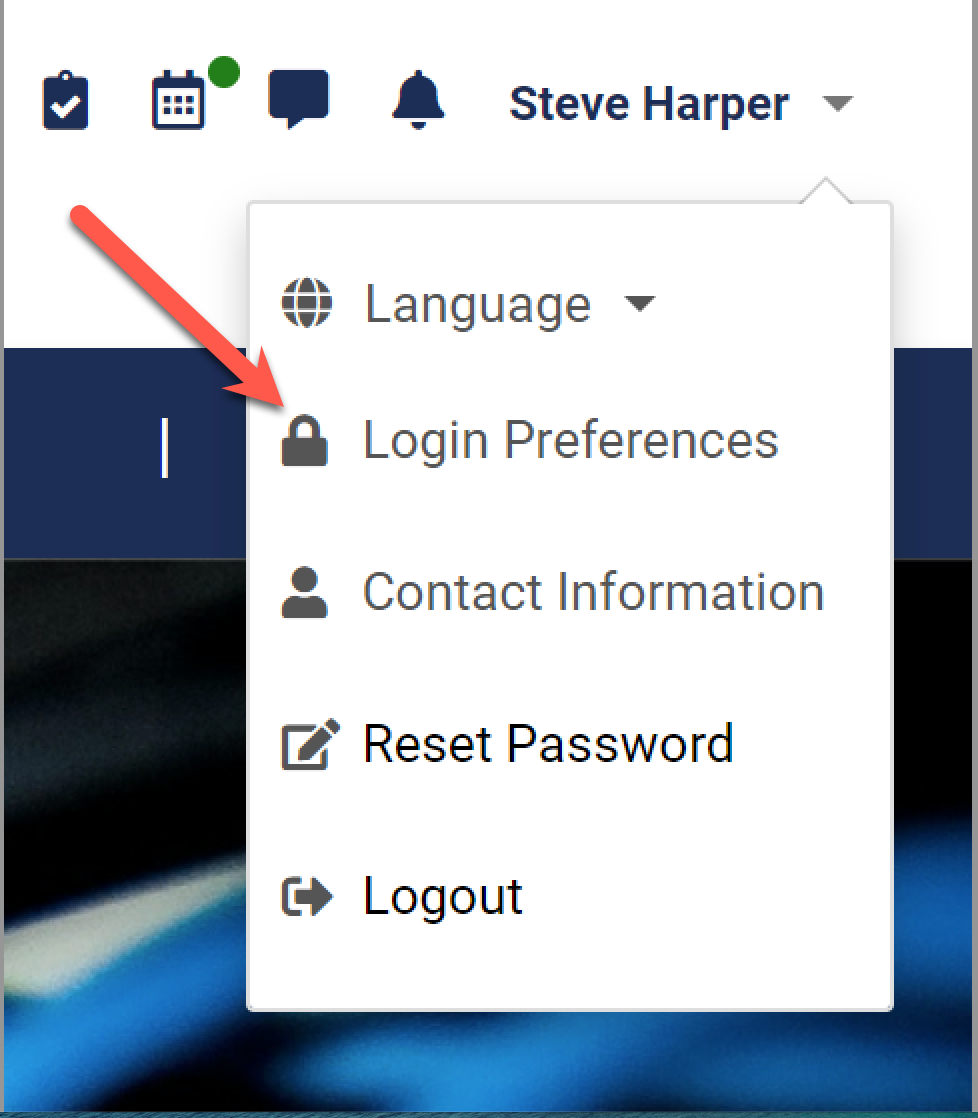
The two existing MFA methods for receiving the authentication code, E-mail and Authenticator Application, have been joined by a third, SMS text message. Existing LMS users can access this new MFA option by clicking on their name in the upper right corner and selecting Login Preferences. When Text Message is selected, the user will be asked to input the cell number where they want the authentication code delivered and hit save. All MFA codes from that point forward will be delivered to the number provided.

New LMS users still, and always, need to initially authenticate using E-mail, but after that they can choose to select from Authenticator Application or Text Message if preferred.

E-mail remains the default MFA method unless changed by the user. Users can change their MFA method at any time.


TMS users will also see this as an option.  Once logged into the TMS, click on your name in the upper right corner to choose SMS Verification if desired.


Last Thing:

There are online resources that do not require MFA to be used each time you log in and then some that allow you to select how secure you prefer to be by allowing you to choose how often you must verify.  In our cases as ERISA governed organizations, we are held to a very high security compliance level.  It’s also something to note that using systems that send automatic messages charge by the quantity of messages.  With email or with SMS, the number of messages the system sends equates to a charge.  We monitor these charges to watch for concerns and will communicate those if they arise.  While we, and you, are required to have these measures in place we try very hard to make them as user-friendly as we can, meet the required security benchmarks, and keep the costs down.


Thanks for reading!

LMS Quiz Error Issue – June 12, 2024 (8:50 am – 10:57 am Eastern)

At 8:50 am Eastern on 6/12/2024 we were alerted about an issue with the Learning Management System affecting quizzes in the Tech Math – CML and Construction Drawings – CML courses. The development teams were able to pinpoint the cause and resolved the issue at 10:57 am. 

So… what happened?

Tech Math – CML and Construction Drawings – CML both use questions that generate random variables that make each quiz and quiz attempt unique. When a student (or instructor) attempts a quiz, the system pulls the random variables needed for those question types. This morning, the number of concurrent random variable requests hit the limit that prevents overloading servers.

So… what did we do?

Because our LMS servers can automatically scale up and down as needed, the team was able to disable this parameter and the random variable function for these quizzes was restored.

We apologize for any interruptions and frustration caused by this incident. We will continue to monitor the LMS for issues, learn from incidents like this, and strive to deliver an online learning environment that performs flawlessly for your students and programs.